How To Use Gitlab Push, Pull And More
Revision as of 02:26, 3 October 2022 by Faiz.kwong (talk | contribs)
START HERE :
1. Open Git Bash
- We assume that you have Gitlab account and have install Git.
- Make sure you remember your password (GitLab Password from the first day of your work)
- Open Git Bash. Do all these in Git Bash command prompt:
Example with picture below
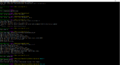
Git Bash Command Prompt

- The command for Git Bash:
1. First, config your git credential:
~ git config --global user.name “gitlb.dev” // Follow your this user name for developer only
~ git config --global user.email gitlab.developer@valse.com.my // Follow this email for developer only
Click enter.
2. Then go to project repository folder(Still use the Git Bash):
~ cd D:/Workspace/Repository  // Follow your directory path
Click enter.
3. Then checkout git project url of our project(in Gitlab):
Example with picture at below
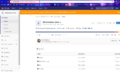
URL for repository

~ git clone [URL of the git project]
Example: ~ git clone https://gitlab.com/valsetech/blinq-fashion-web.git
For your project depends on the url in gitlab(check from Gitlab).
Click enter.
The command for opening project repository inside Git Bash check below
~ cd blinq-fashion-web   // This is for example, follow your project repository name.
Click enter.
4. Then switch to “develop” branch(Still use the Git Bash):
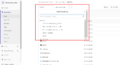
Branches

There is more than 1 branches.
Master Branch is for the lead developer.
Develop Branch is for developer.
Member-section is for all member(can pull from this section).
Command for switching to 'develop' branch at below
~ git checkout develop
Click enter.
5. Then create new branch, let call this branch “member-section”: (you can do this in Git Bash or Atom)
~ git checkout -b member-section
Click enter.
6. Publish this branch so that other member can also access it:
~ git push --set-upstream origin member-section
Click enter.
7. When you finish a feature and pull the file from the branch, please do:
~ git pull origin develop
Click enter.
Then:
~ git push
Click enter.
- If your role in gitlab is a developer, you cannot push your code into an empty repository.
- Check the repository whether the readme.md has been created. If not please tell the maintainer.
- If the readme.md is in the repository, you can pull the master from gitbash.
- Type this command: "git pull origin master --allow-unrelated-histories"
- After pull, developer can push as usual.
2. To Push Using Atom IDE
- To push project into Gitlab using Atom, need to open Atom > File > Add project folder > Search your project inside Repository. Picture at below
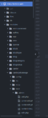
Atom project folder

- You need to click the file.php to stage the project. Picture is below
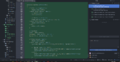
Git stage

- You need to stage all file before commit to your branch. After stage all, write something inside commit message, saying that you have commit to the 'name of your branch'.
// Make sure you commit to the right branches. Below tab there is LiveReload - UFT-8 - PHP. Beside the PHP is the category of branch that were connected to your gitlab project.
- To push you have to right-click 'fetch' between of branch and GitHub. After you right-click the 'fetch', you will see more function such as Push, Pull and etc. After you click 'Push' you can view/check at Gitlab under name of your branch, search the folder that you push.
