Tips for PHP
Revision as of 10:19, 13 August 2019 by Faiz.kwong (talk | contribs)
START HERE:
1. Install FileZilla
- After the installation, go to the file > site manager > Click My Sites > Click New Site > name it same as your host name Example : dev.test.valse.my.
Under the protocol: choose 'FTP- File Transfer Protocol'.
Encryption: choose'Only use plain FTP(insecure).
Logon type : choose 'Normal'.
User : username of your host.
Password : password of your host.
- After that go to your Advanced tab. At the default local directory: browse your respiratory > your path project file. Example : D:\Respiratory\dev-test-web
At the default remote directory: /public_html          // This is the directory of the project in the server.
Tick Use synchronized browsing. Tick directory comparison.     // This is to compare whether there is changes in files or not. Yellow means the files not in either your workspace nor server. Green means changes that have been made.
FileZilla is manual uploader to your server. For future, we will be using gitlab to synchronize with server db.
2. Concept be used
- Flow for the php is example Index.php > test.controller.php > test.model.php ; User will click button and the function in controller will request ID or parameter from the model. Do not forget to save every time you make changes in file.php. For the comment, use proper ways to comment in the coding example
   // For downloading PDF invoice or other types of files.
   protected function Download()
   {
       if ($this->section=='main') {
           Helper::redirect404();
       } elseif ($this->section=='admin') {
           // Control Access
           Staff::Access(1);
   }
- In the gitlab, the important is in the Issues section. Click Issues, then there is sub under of it like; List, Boards, Labels, Milestones. Always check on List and Boards. Example in picture
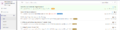
Caption1
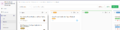
Caption2


- Another tips, if the system have error such as HTTP 5000 or anything. You need to check error_log; check below
1.Check in Bitnami Wamp manager > Configure > Open Error Log > Search for Fatal Error.
2.Check in error_log in system(If the system has the error_log function).
Below is the picture
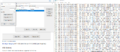
Caption1
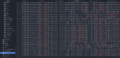
Caption2


3. References For PHP
- References for PHP can be use/search at https://www.w3schools.com/. In w3schools will show the PHP functions, Ajax functions and many more.
